

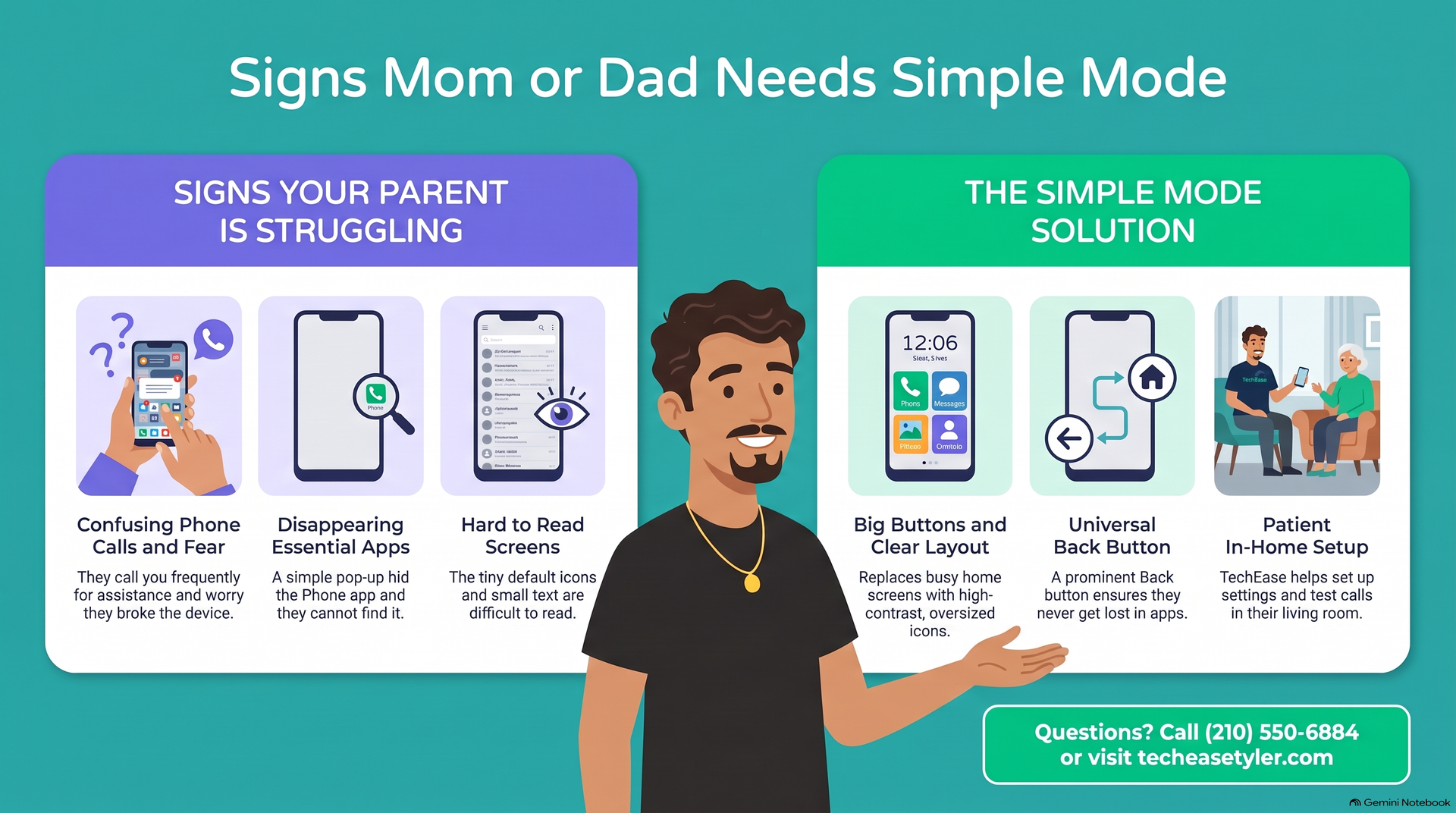
Your dad keeps calling because his phone is confusing. The home screen is a wall of tiny icons, a notification popped up and now he cannot find the phone app, and he is worried he broke something.
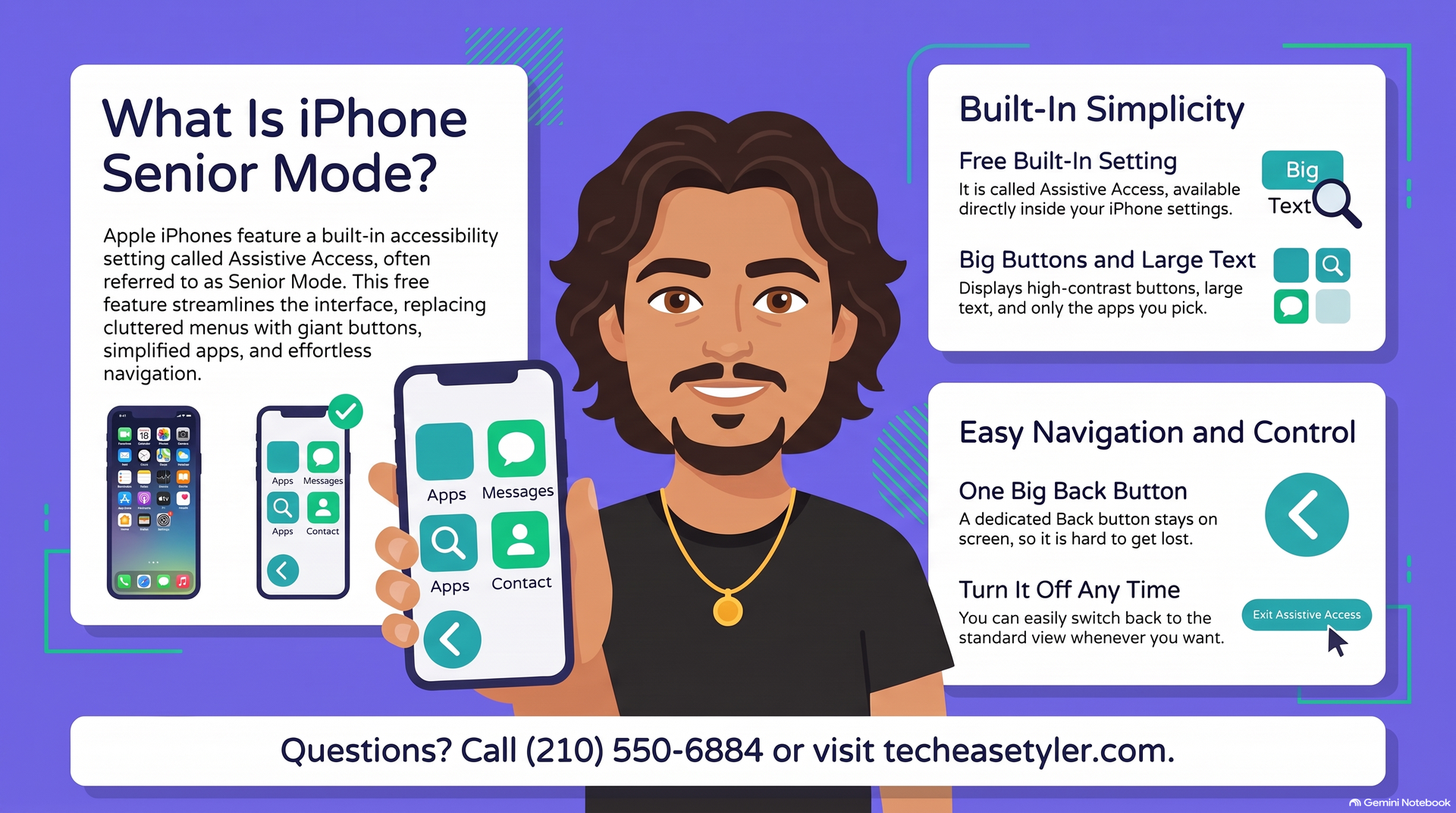
Good news. In about five minutes you can turn on a built-in setting that makes an iPhone far simpler to use. Apple calls it Assistive Access. Most folks call it the iPhone simple mode, or senior mode. It is free, it is already on the phone, and you can turn it off again any time.
📱 What is iPhone "Senior Mode"?
It is a setting named Assistive Access, built into the iPhone. When you turn it on, the screen changes to large, high-contrast buttons, big text, and a short list of only the apps you choose, like Phone, Messages, Camera, and Photos. There is one big Back button at the bottom, so it is very hard to get lost.
You need an iPhone running a recent version of iOS. Most iPhones from the last few years can do this. If you are not sure, we can check it for you.
🔧 How do I turn on Assistive Access? Step by step
Do this on your parent's phone while you are sitting together. The whole thing takes about five minutes.
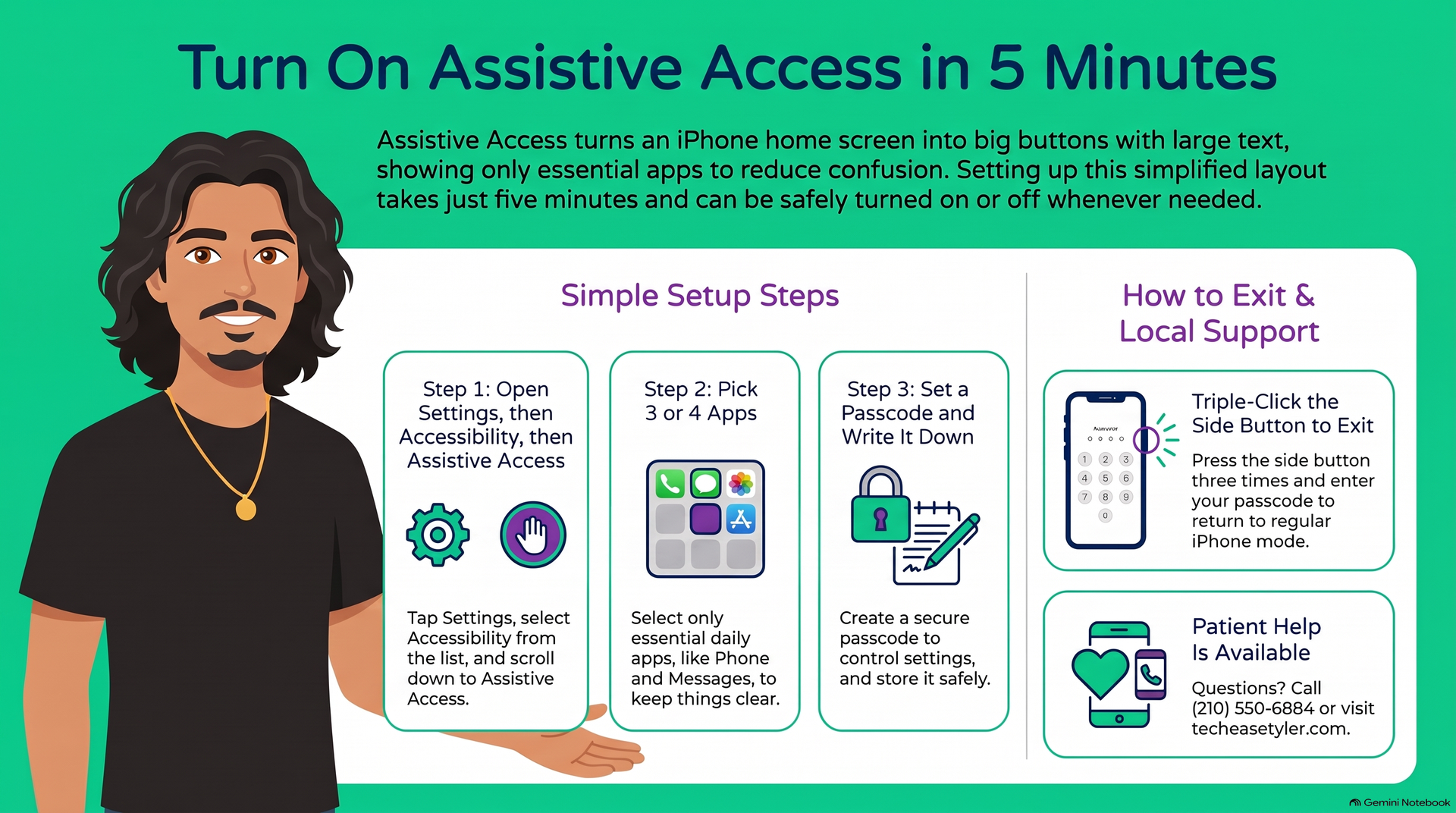
Tap the gray gear icon named Settings. Scroll down and tap Accessibility.
It is near the bottom of the Accessibility list. Tap it, then tap Set Up Assistive Access and follow the prompts.
Choose a short list. Phone and Messages are the usual two. Add Camera, Photos, and maybe one more. Fewer is better.
You will set a separate passcode that turns Assistive Access off. Write it down and keep it somewhere safe. You need it to change settings later.
Tap to enter Assistive Access. Make a test call and send a test text so your parent sees how easy it is. Show them the big Back button.
💬 A few tips that make it stick
Turning the setting on is the easy part. These small choices are what actually make it work for your parent day to day.
Three or four apps is plenty. Every extra icon is one more thing to get confused by. You can always add one later.
In Assistive Access you can set up Calls and Messages to show big photo buttons of the people they talk to most. One tap to call you.
The Assistive Access passcode is separate from the regular one. If you lose it, getting back out is a headache. Keep it somewhere you both can find it.
🤝 You already handle everything. Let us handle the tech.
If you live a few hours away, or you have tried and the phone fought you, we can sit down with your mom or dad in their own home here in the Tyler and Bullard area and set all of this up the patient way. We will test it with them, write down the passcode, and make sure they feel good about it before we leave.
While we are at it, it is a good moment to lock the phone down against theft too. See our guide on what security software is actually worth it, and our plain-English walk-through of how to stop updates from interrupting the day.
God Bless.
Robert
Owner, TechEase
"No jargon, no judgment, just patient help that makes sense."
📞 (210) 550-6884 | Transparent Flat-Rate Pricing | We Come to You