
Your computer has great timing. Right when you're in the middle of something you can't pause, Windows decides it can. That spinning restart screen. Those 20-minute update blocks at the worst possible moment.
Windows updates are the number one tech frustration I hear about from people here in Tyler. The frustrating part is that Microsoft's default settings are built for their deployment schedule, not yours. You can change that. Here's how.
I'm going to walk you through five ways to take back control, starting with the safest options and working up to the more advanced ones. I'll also be straight with you about the risks, because skipping updates entirely is not something I'd ever recommend without explaining why.
If you're still on Windows 10, this matters even more. Windows 10 support is ending in October 2025, and Microsoft is pushing users toward Windows 11. Understanding how to manage updates now will serve you well regardless of which version you're on.
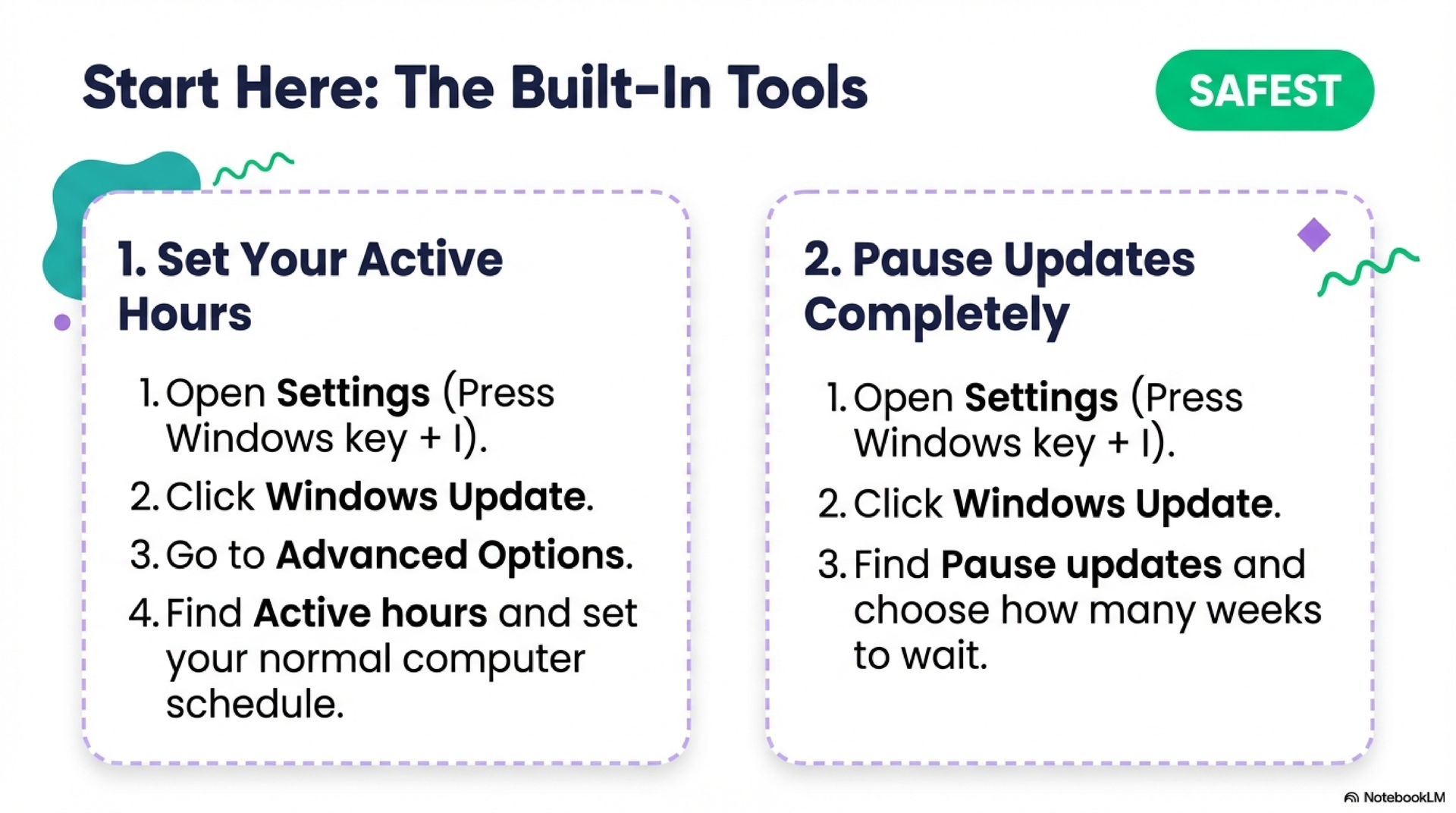
🕓 Start Here: Set Active Hours
Windows has a built-in option to pause updates for up to five weeks. This is the cleanest, safest way to delay updates when you have something critical coming up, like a tax deadline, a big presentation, or a week where you just can't afford any surprises.
To pause Windows updates (Windows 10 and 11):
- Open Settings (press Windows key + I)
- Click Windows Update
- Select Pause updates
- Choose a pause duration (up to 5 weeks on Windows 11, up to 35 days on Windows 10)
- Click Pause for [X week(s)]
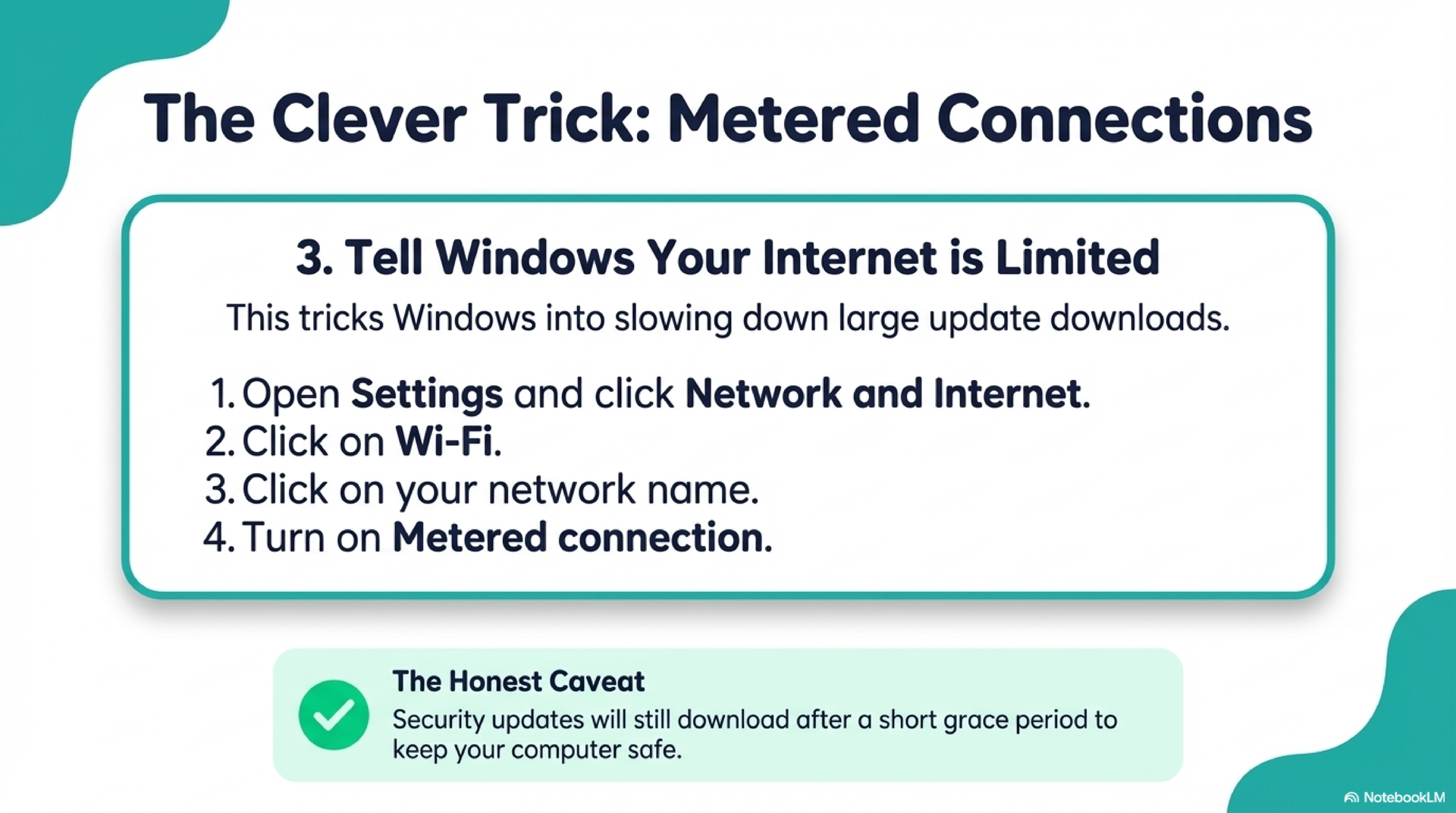
🌐 Method 2: Metered Connection
If you mark your internet connection as "metered," Windows will treat it like a limited data plan and stop downloading large updates automatically. This works well on home Wi-Fi networks.
On Windows 11:
- Open Settings > Network & internet
- Click your Wi-Fi connection name
- Toggle Metered connection to On
On Windows 10:
- Open Settings > Network & Internet > Wi-Fi
- Click your network name
- Under Metered connection, toggle Set as metered connection
⚙️ Method 3: Disable via Windows Services (Advanced)
Windows Update runs as a background service. You can disable that service entirely, which stops updates from running until you turn it back on. This is more aggressive than pausing, and I'd only recommend it if you have a specific reason, like a compatibility issue with a piece of software that breaks after certain updates.
Steps:
- Press Windows key + R, type
services.msc, press Enter - Scroll down to Windows Update
- Right-click and select Properties
- Set Startup type to Disabled
- Click Stop, then OK
📄 Method 4: Group Policy Editor (Pro and Enterprise Only)
If you're running Windows 10 or 11 Pro, Education, or Enterprise, you have access to the Group Policy Editor, a powerful admin tool that gives you granular control over Windows Update behavior.
Steps:
- Press Windows key + R, type
gpedit.msc, press Enter - Navigate to: Computer Configuration > Administrative Templates > Windows Components > Windows Update > Manage end user experience
- Double-click Configure Automatic Updates
- Select Enabled
- Under Options, choose 2 - Notify for download and auto install (Windows asks before doing anything)
- Click OK
🔒 Method 5: Registry Editor (All Editions, Use With Care)
The Registry Editor lets you make the same changes as Group Policy, but it works on all Windows editions, including Home. This is the most technical approach on this list. If you're not comfortable editing the registry, please stop here and call me. Mistakes in the registry can cause real problems.
Steps:
- Press Windows key + R, type
regedit, press Enter (accept the UAC prompt) - Navigate to:
HKEY_LOCAL_MACHINE\SOFTWARE\Policies\Microsoft\Windows - Right-click the Windows folder, select New > Key, name it
WindowsUpdate - Right-click WindowsUpdate, select New > Key, name it
AU - Inside AU, right-click, select New > DWORD (32-bit) Value, name it
NoAutoUpdate - Double-click
NoAutoUpdateand set the value to1 - Restart your computer
🧠 How to Think About Your Own Risk Level
Here's something I wish more people understood: Microsoft's update schedule is built for the average enterprise IT department, not for a Tyler resident. A retired teacher using their laptop for email faces completely different risk from a small business owner processing customer payments.
Here's what I tell people: if your computer holds anything important, bank logins, client files, tax records, treat updates as non-optional and use Active Hours or the Pause method to control the timing. If your computer is mostly for browsing and streaming, a few extra weeks between updates is not going to put you in danger. The risk comes from months, not days.
The goal is not to avoid updates. The goal is to stay in control of when they happen. Those are very different things.
⚠️ What Happens if You Stay Unpatched Too Long
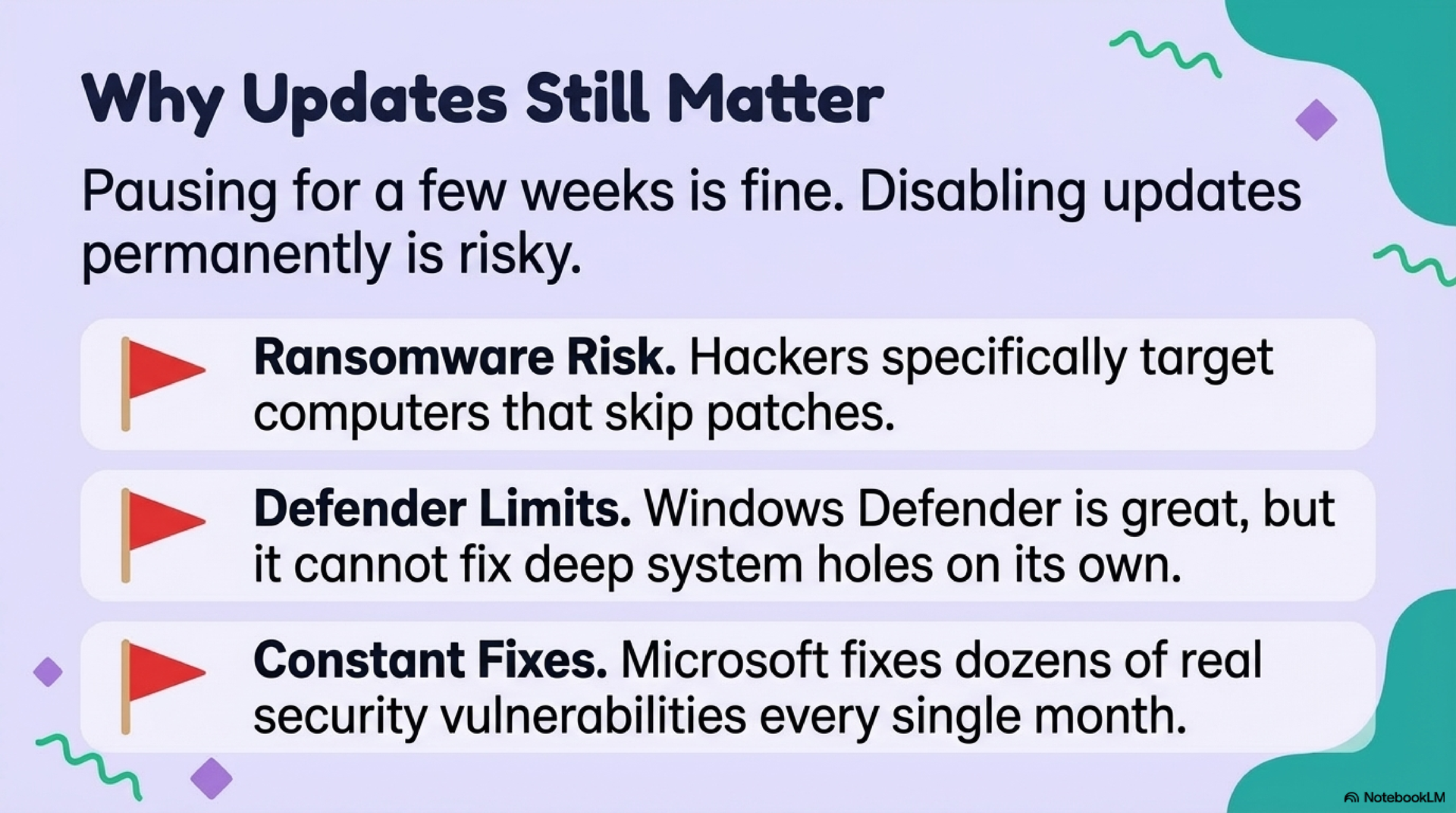
I want to be straight with you here, because this matters. Skipping updates for a few weeks is fine. Skipping them for months is when I start getting calls about viruses.
The majority of successful ransomware attacks target known vulnerabilities that already have patches available. The fix existed. The user just hadn't installed it yet.
Security researchers regularly find vulnerabilities in Windows that are being actively exploited before a patch exists. Once Microsoft releases the patch, the clock starts ticking. The longer you wait, the more exposure you have.
The longer you delay updates, the bigger the gap between your system and current software. This causes unexpected crashes, failed printer connections, and software that stops working without explanation.
For more on keeping your system secure beyond updates, see my post on why I rely on Windows Defender for everyday protection.
💣 Did a Windows Update Break Something?
I want to be fair here: not every update is a smooth experience. There have been real incidents worth knowing about.
This update caused boot failures and blue screens on some Windows 11 systems. I wrote about how to fix it if your Windows 11 won't start after the January 2026 update. Microsoft issued a patch within days, but it left computers unable to boot in the meantime. See the full January 2026 update breakdown here.
Several users reported performance slowdowns and audio driver conflicts following a batch of cumulative updates. Microsoft acknowledged and patched these within two weeks.
The pattern: Microsoft usually fixes problematic updates quickly. The Pause method in Method 1 above gives you a buffer of a few weeks to let those fixes land before the update hits your machine. That's a reasonable approach and the one I personally use.

Stay safe, Tyler.
Robert
Owner, TechEase
“No jargon, no judgment, just patient help that makes sense.”
📞 (210) 550-6884 | Transparent Flat-Rate Pricing | We Come to You