
If you use Windows 11 and you have ever spent five minutes getting your folders just the way you like them, only to come back the next day and find everything rearranged back to a jumble, you know exactly what I am talking about. Microsoft just fixed one of the most long-standing frustrations in Windows, and it honestly only took them about twenty years to do it.
File Explorer, the program you use to browse the files and folders on your computer, has had a persistent problem since at least the early days of Windows XP. When you changed how your folders looked, those changes did not always stick. The folder would forget your preferences the next time you opened it a different way. It was small, it was maddening, and it affected millions of people every single day.
A new Windows 11 update rolling out right now finally fixes that. Here is what changed, what else the update improves, and how to make sure you get it.

🔍 What Was the Problem?
Imagine you open your Documents folder and decide you want to see your files as a list, sorted by date, with the newest ones on top. You make those changes, everything looks nice, and you close the folder. The next day you open your Documents folder from a different spot, maybe by clicking a link in your email, and the folder has forgotten everything. It shows big icons again, sorted by name, grouped by date modified, just like before. You have to fix it all over again.
This happened because Windows stored your folder view preferences inconsistently. Depending on how you opened a folder, it might use your saved settings or it might start from scratch. For people who organize their files carefully, it was a constant source of frustration. And it was not a new bug. Computer users have been complaining about this exact problem since at least the early 2000s. Multiple Windows versions came and went without a fix. Windows 11 finally got around to it.
✅ What Changed in the New Windows 11 Update
The update, which started rolling out to Windows 11 users in May 2026, makes folder view settings stick the way you would expect them to. Here is what is now fixed:
Whether you prefer List view, Details view, or large icons, that setting will now stay the way you set it, no matter how you open the folder.
If you sort by name, by date, by size, or by type, that sort order will still be there the next time you open the same folder. No more re-sorting every visit.
If you turn off the Group by Date feature that many people find cluttering, it will stay turned off. Your clean, ungrouped view will be waiting for you next time.
If you made your icons larger so they are easier to see, that size setting will now stay in place. A small change that makes a big difference for anyone who has trouble seeing smaller text or icons.

🔍 Other Improvements in the Same Update
The folder view fix is the biggest deal, but the same Windows 11 update also includes a few other improvements worth knowing about:
- File Explorer opens faster. Microsoft improved the launch speed. If your Explorer window felt sluggish to open, this should help.
- Dark mode white flash is gone. If you use dark mode on your computer and noticed a bright white flash every time you opened File Explorer, that flash is now fixed.
- New preview anyway button. When the preview pane could not display a file type, it used to just show an error. Now there is a button to try previewing it anyway.
- Support for four new archive formats. File Explorer can now open additional types of compressed files without needing a separate program.
🔍 How to Get This Update
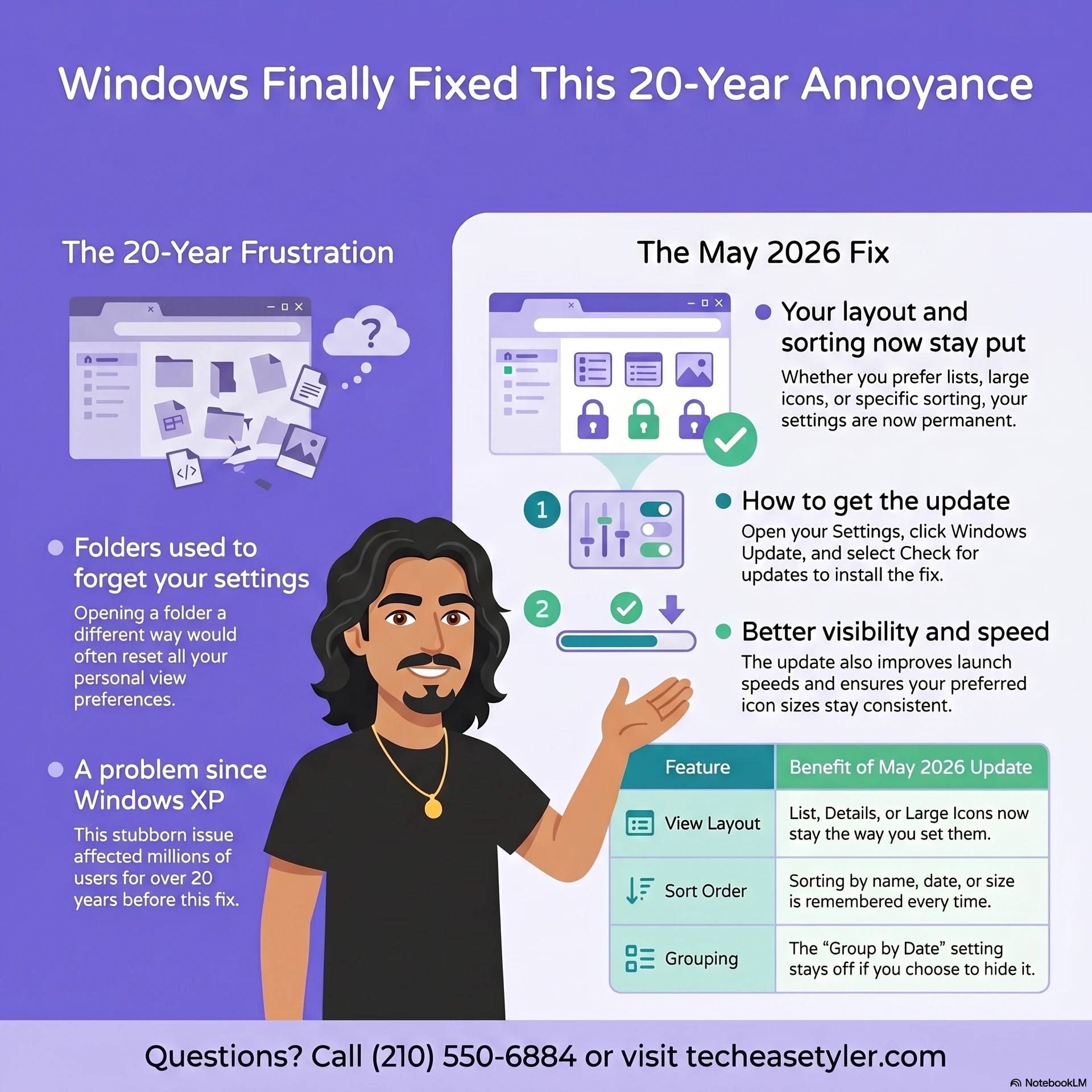
This update is rolling out gradually to Windows 11 users. If you do not see it right away, that is normal. Here is how to check and get it:
Click the Windows logo button in the bottom center of your screen. It looks like four small squares arranged in a window shape.
Click the gear icon that says Settings. It is usually in the pinned apps at the top, or you can type the word Settings and press Enter.
In Settings, look on the left side for Windows Update. Click it. Then click the Check for updates button. Windows will look for any available updates.
If updates are available, click Download and install. When it is done, restart your computer. After the restart, your folder view settings should start sticking.
If you recently upgraded to Windows 11 or want to make sure your updates are running smoothly, you might also find this helpful: Windows 11 January 2026 Update: Essential Information for Tyler Residents. And if Windows updates have been interrupting your day, there is a guide for that too: How to Stop Windows Updates From Interrupting Your Day.
God Bless.
Robert
Owner, TechEase
"No jargon, no judgment, just patient help that makes sense."
📞 (210) 550-6884 | Transparent Flat-Rate Pricing | We Come to You