
If your Windows 11 computer has been acting strangely lately, maybe it’s refusing to go to sleep, crashing when you try to shut down, or freezing when you open Outlook, you’re not alone! Microsoft’s January 13, 2026 security update (KB5074109) has been causing headaches for Windows users around the world, including right here in Tyler, Texas.
The good thing is, you don’t have to worry. We’ve sorted through all the tech jargon so you don’t have to. Here’s what’s going on, who’s affected, and what you can do about it.
💻 So, What Happened?
On January 13, 2026, Microsoft released a security update called KB5074109. This update was designed to fix over 100 security vulnerabilities, which is actually really important for keeping your computer safe from hackers and viruses. Unfortunately, the update also introduced several bugs that are affecting everyday computer tasks. Microsoft has already released fixes for some problems, but others are still being investigated.
🔍 Who Is Affected?
🔍 How to Check If You Have This Update
Want to know if this update is installed on your computer? Here’s an easy way to check:
Press the Windows key + R on your keyboard at the same time. A small box will appear. Type winver and press Enter.
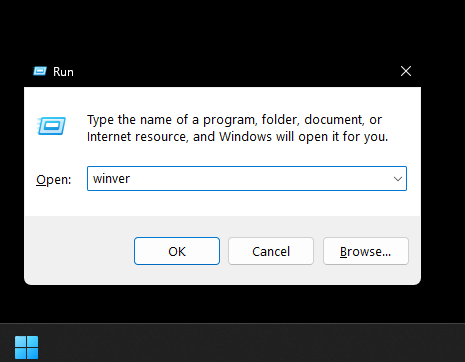
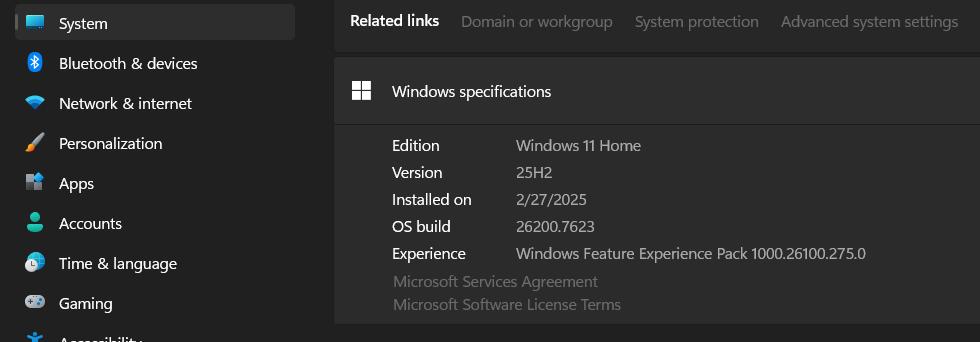
A window will pop up showing your Windows version. Look for the build number.
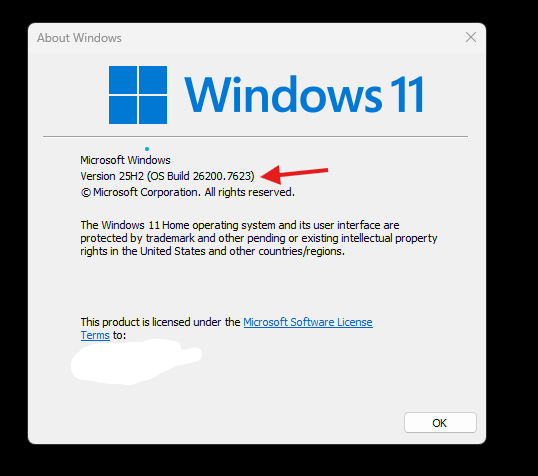
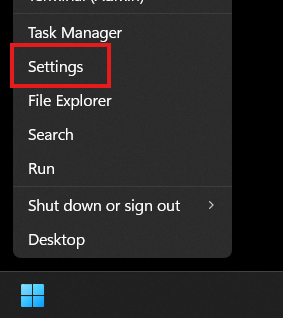
If it says 26200.7623 or 26100.7623, you have the affected update. You can also check by going to Settings (right-click the Windows menu icon).
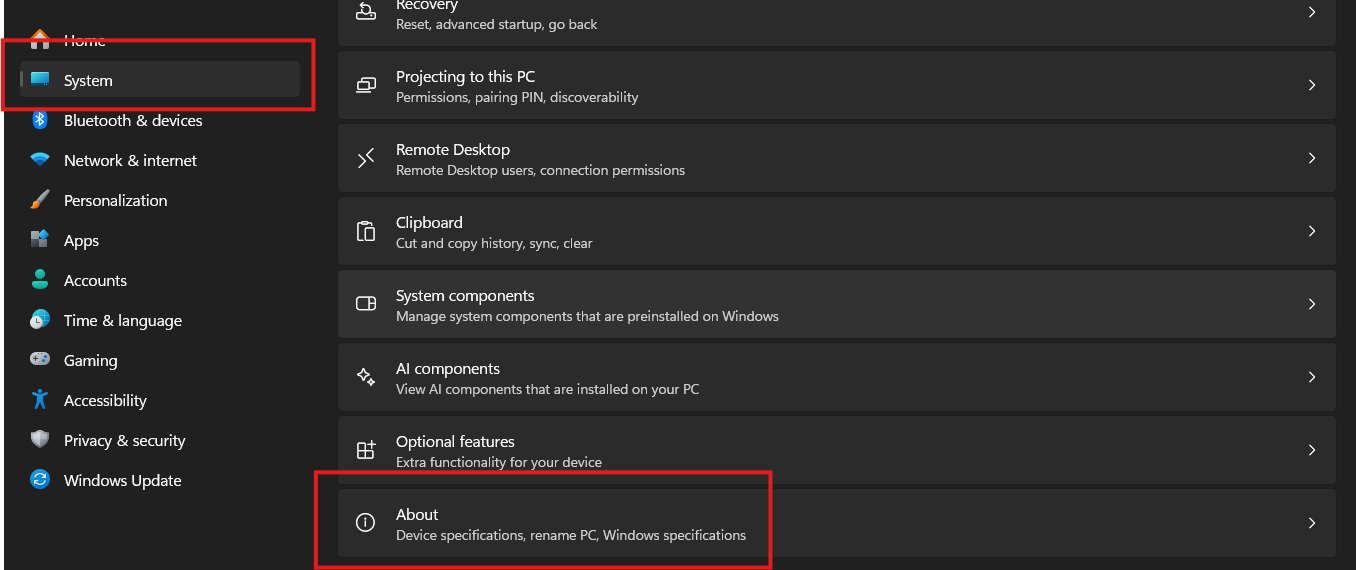
Go to System, scroll all the way down, and select “About” to find the OS Build number.
⚠️ Known Problems and Fixes
What’s happening: When you try to put your computer to sleep, the screen goes black but the computer doesn’t actually go to sleep. The only way to use it again is to hold down the power button. This mainly affects older desktop computers using “S3 sleep mode.”
What you can try: Unplug any USB webcam before sleeping, or use Hibernate instead of Sleep.
What’s happening: When you click “Shut down,” your computer restarts instead.
Good news! Microsoft released a fix in update KB5077797 on January 17, 2026.
What’s happening: The older “classic” Outlook freezes, hangs, or won’t open. Affects people with POP email accounts or PST files stored in OneDrive. The new Outlook app is NOT affected.
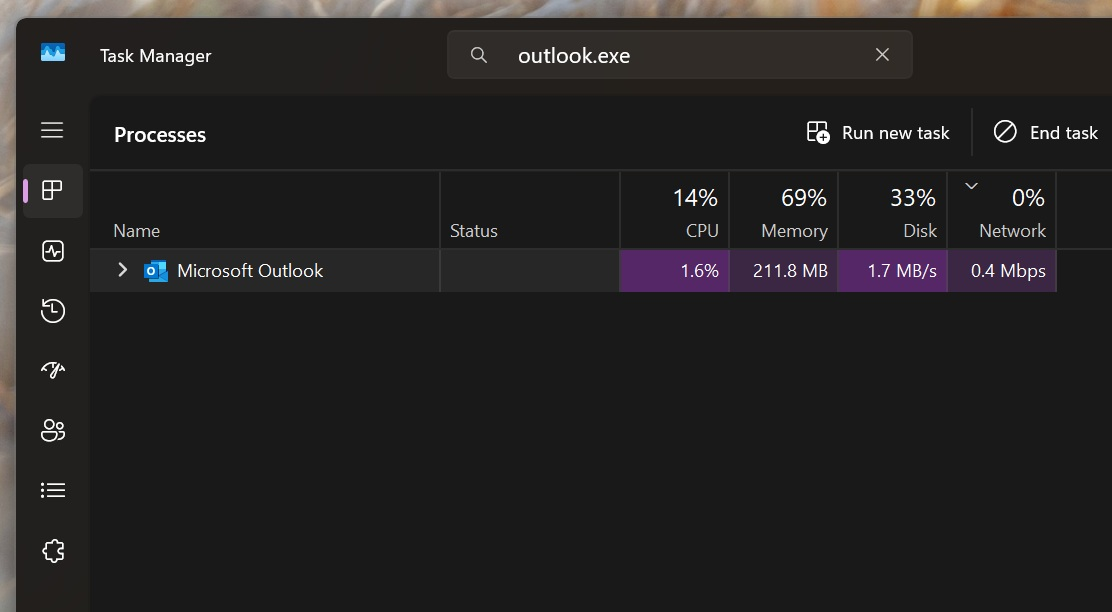
What you can try: Open Task Manager (Ctrl + Shift + Esc), find Outlook.exe, click “End Task,” then try again. Or use webmail through your browser until a fix is released.
People trying to connect to their work computers remotely are getting login failures.
Good news! Microsoft released fixes: KB5077744 for Windows 11 versions 25H2 and 24H2, and KB5077797 for version 23H2.
🔧 How to Uninstall the Problematic Update
If you’re experiencing serious problems and need things working right away, you can remove the update. Here’s how:
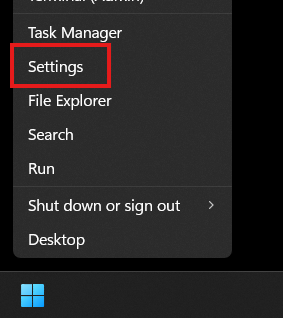
Right-click the Start button and open Settings.
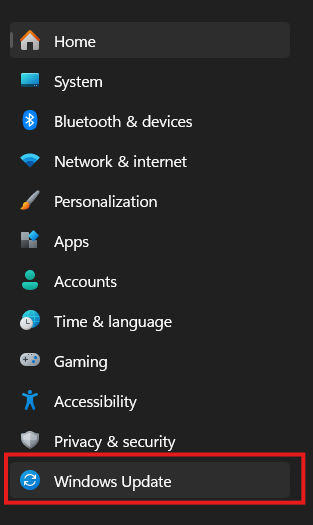
Click Windows Update in the left menu.
Click “Update history” to see installed updates.
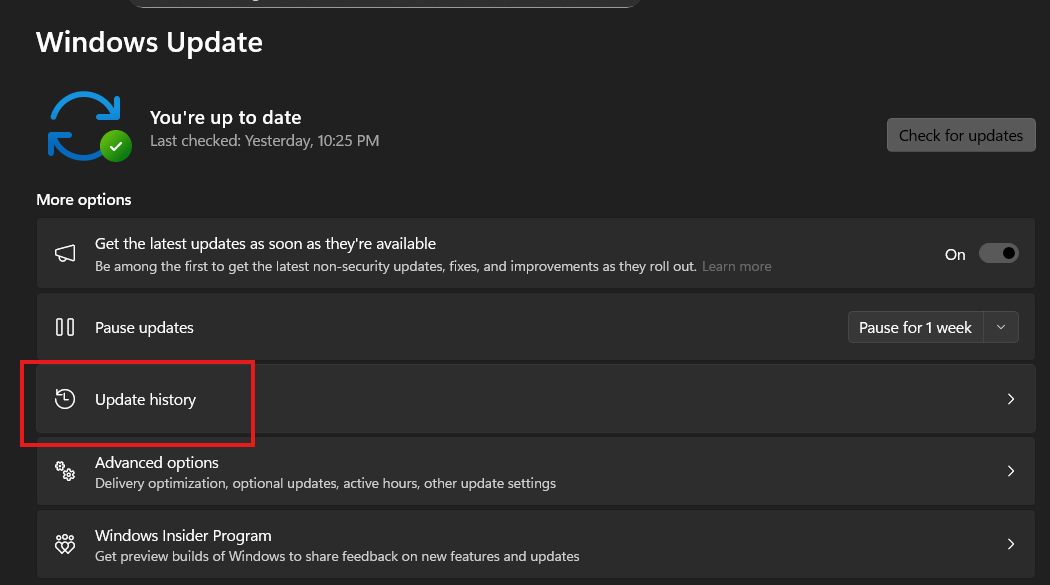
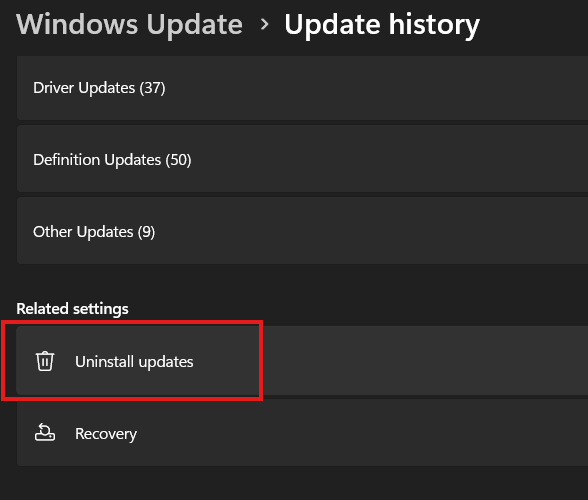
Scroll down and click “Uninstall updates.”
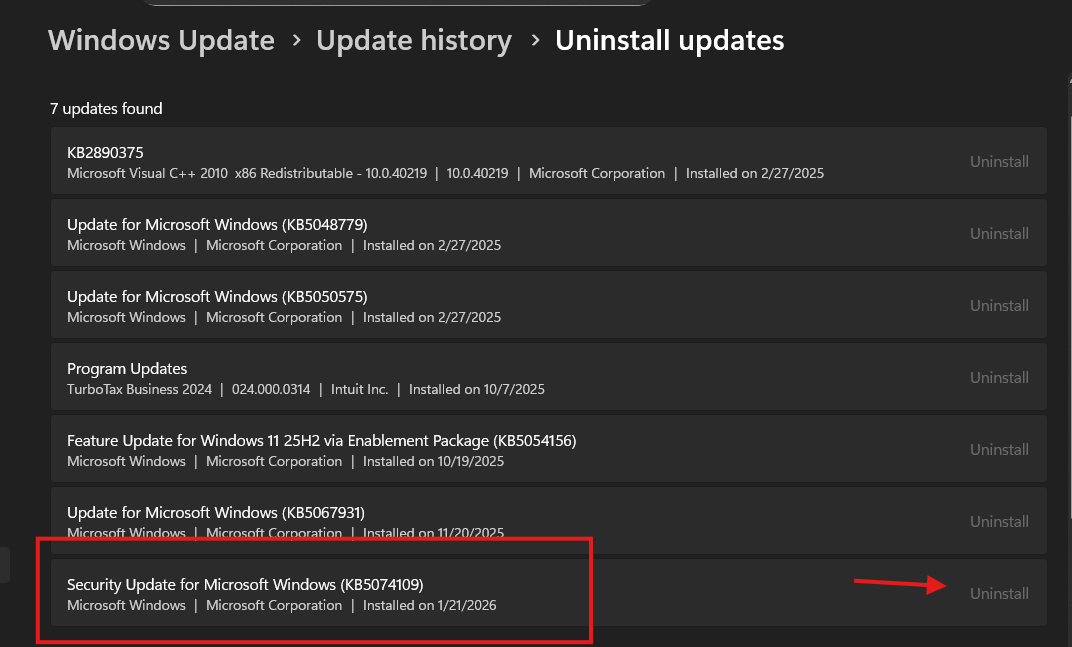
Find KB5074109 in the list and click Uninstall, then confirm.
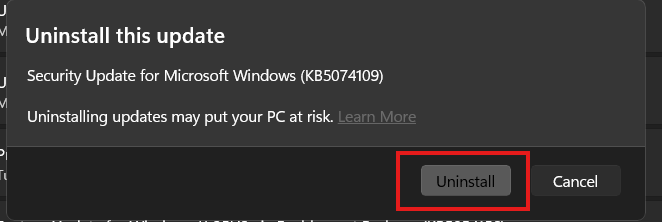
Click Uninstall again to confirm. Your computer will restart automatically.
Stay safe, Tyler.
Robert
Owner, TechEase
“No jargon, no judgment, just patient help that makes sense.”
📞 (210) 550-6884 | Transparent Flat-Rate Pricing | We Come to You